Professional advice available Monday to Friday, 8.30am-5.30pm
Mon. to Fri. 8:30 a.m. – 6:30 p.m.
0333 123 3050
Call us!
Boost your productivity with a Yealink Teams phone—a dedicated device designed to bring the full Microsoft Teams experience to your desk.
Discover our full range of Yealink Teams-certified phones and equip your workspace with the tools for effortless collaboration.
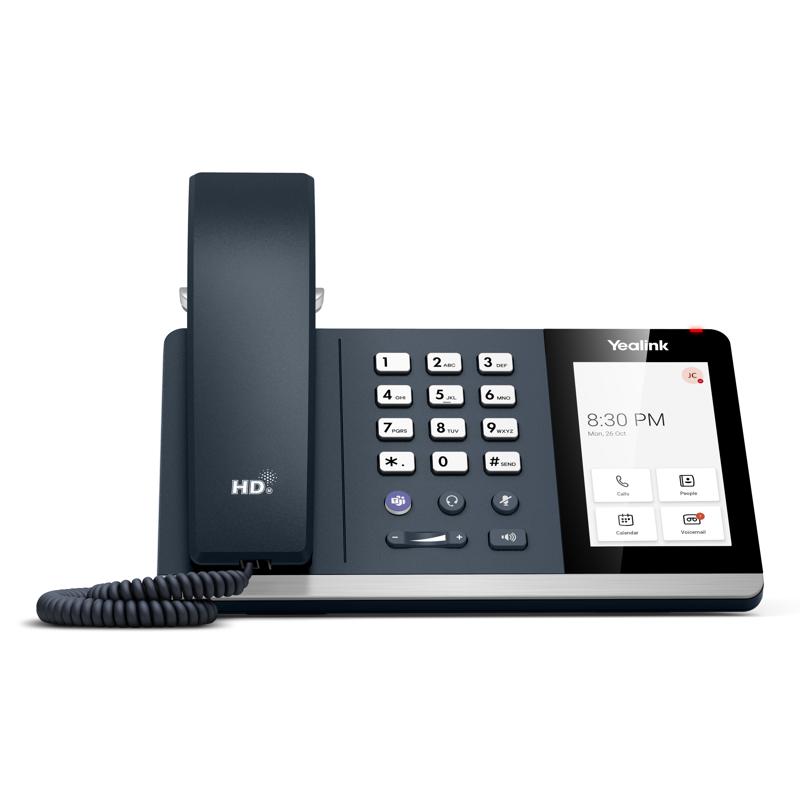
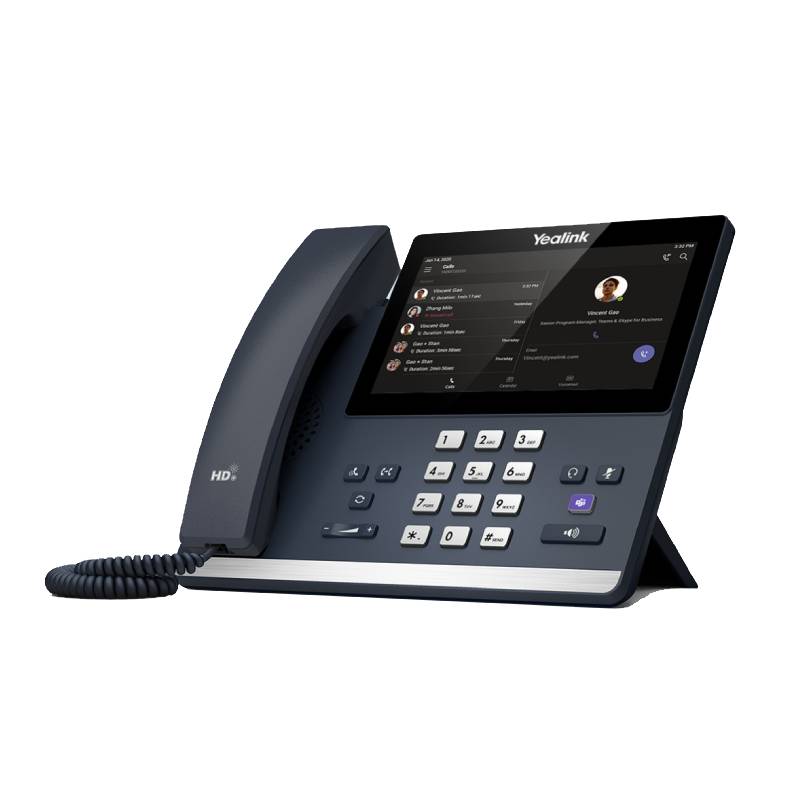
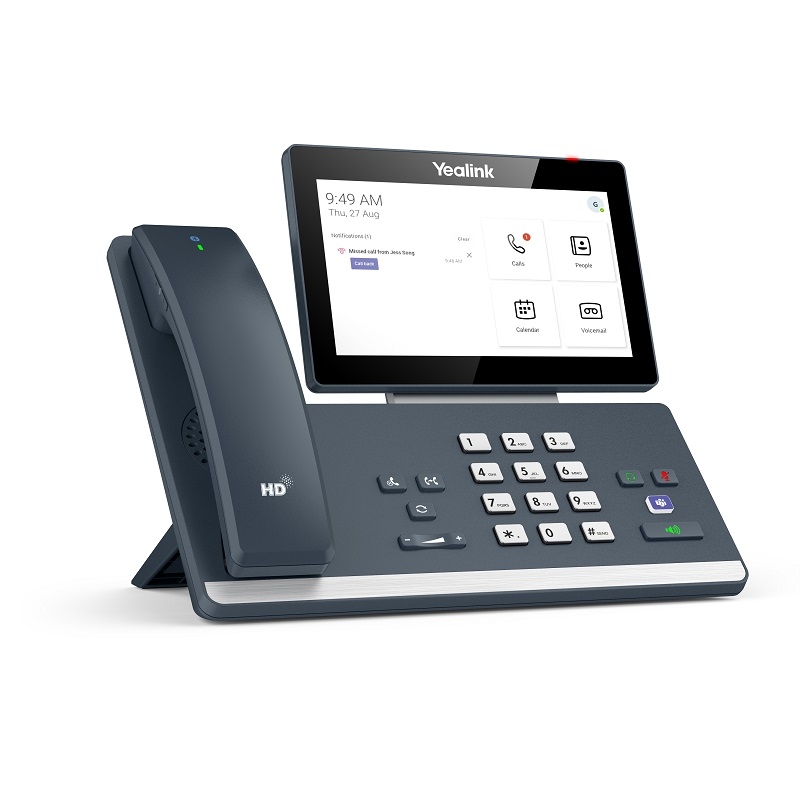
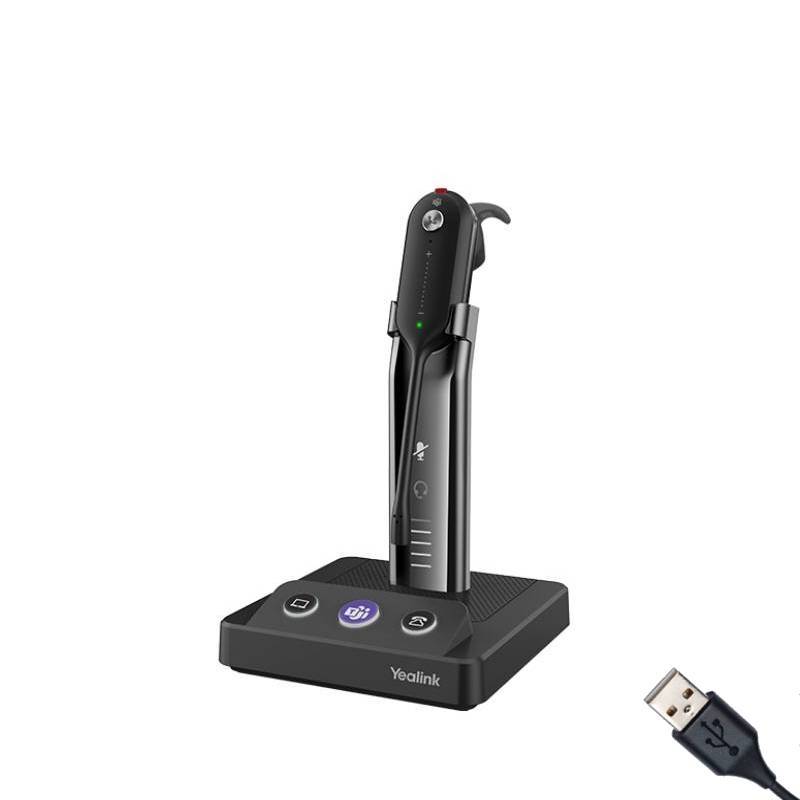
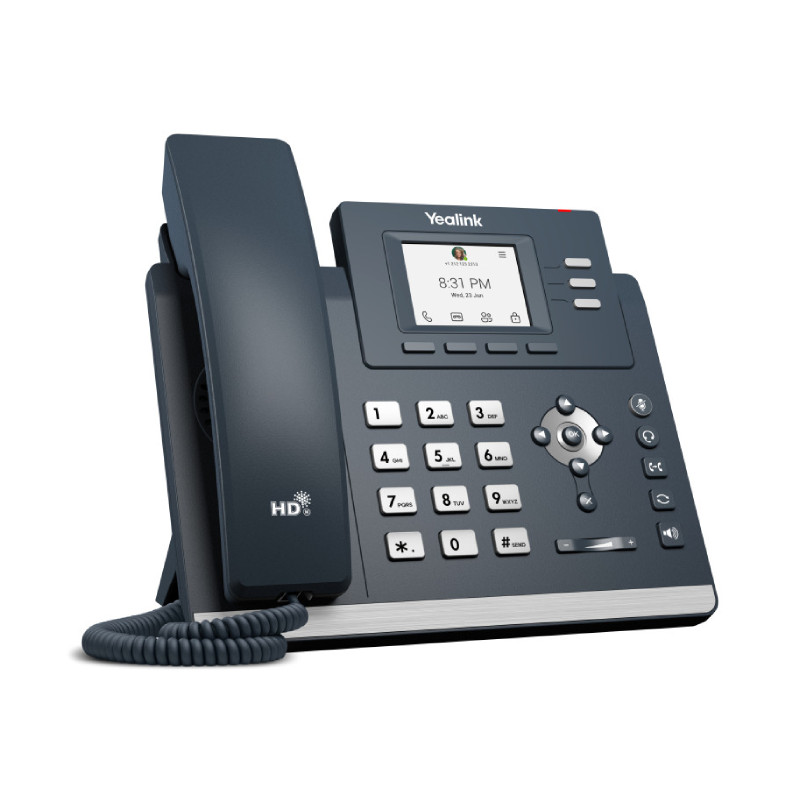
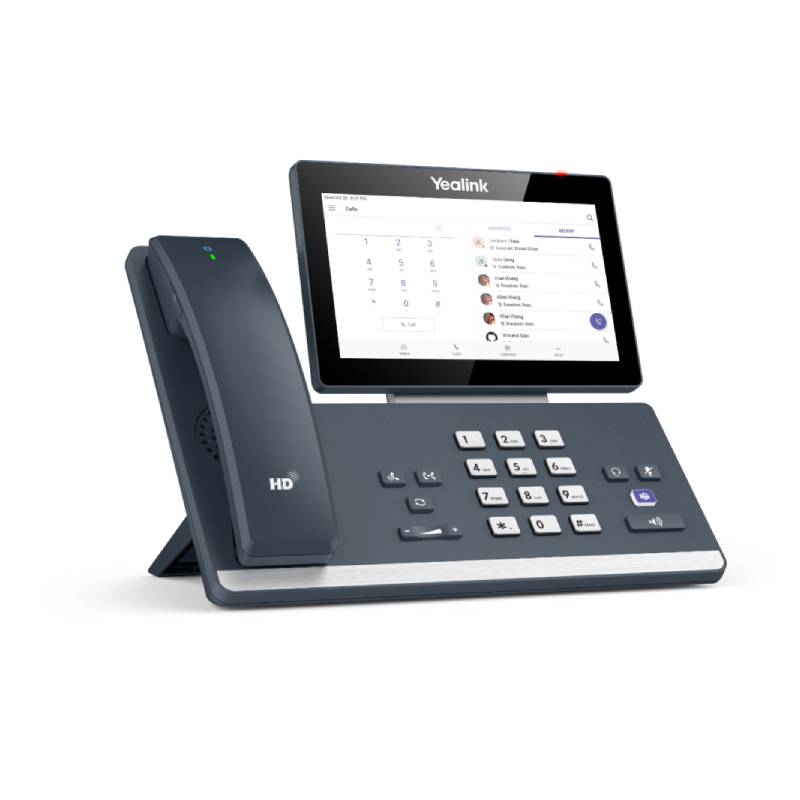
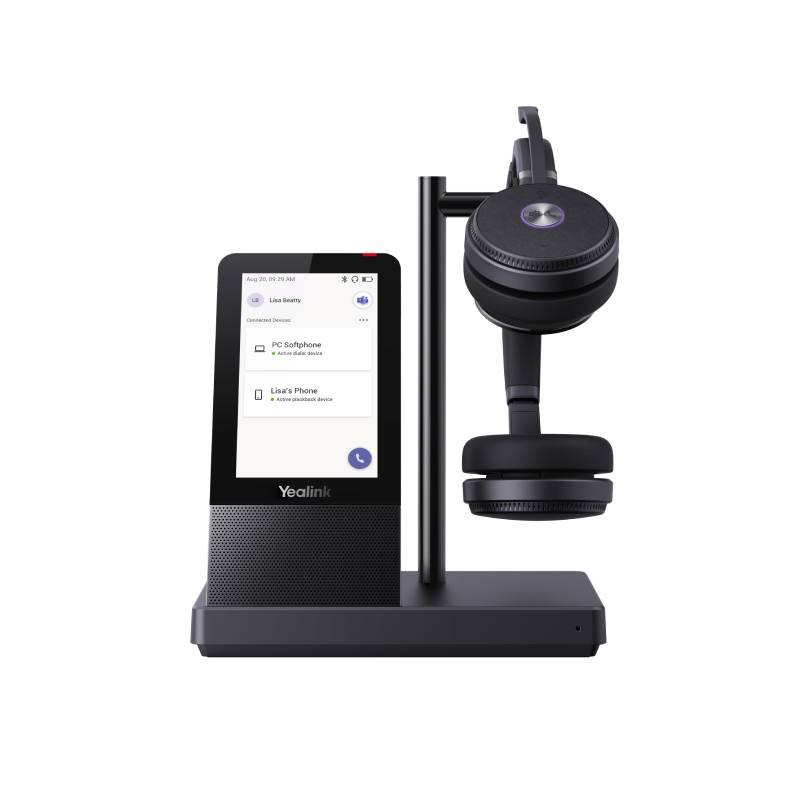
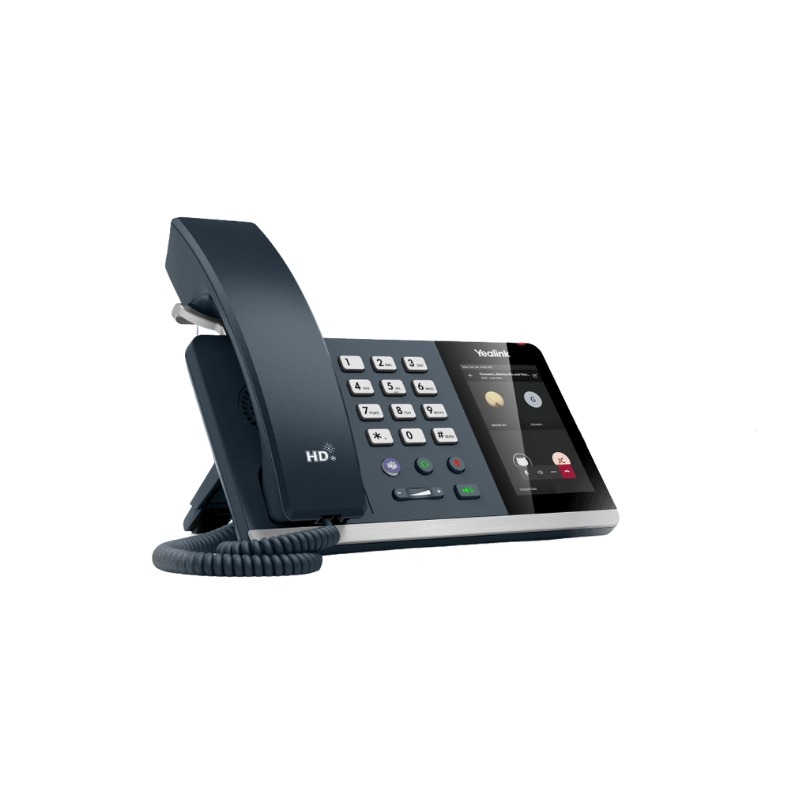
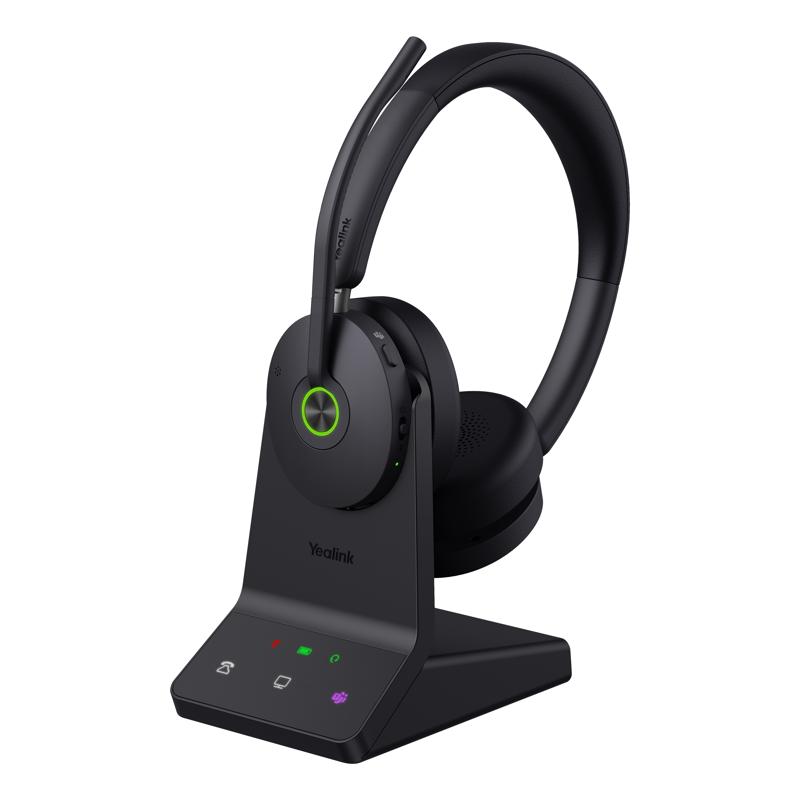
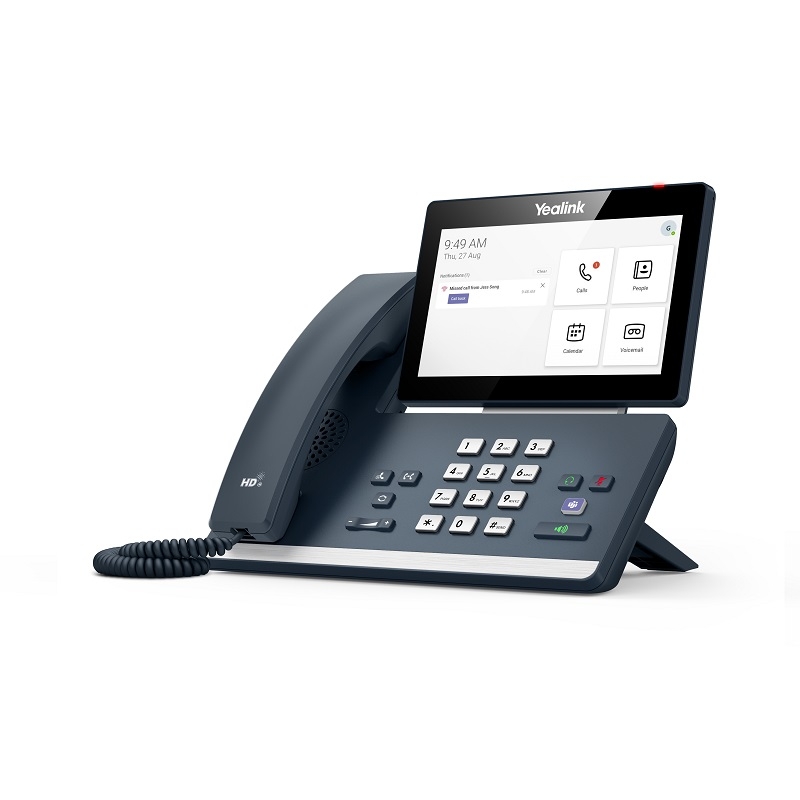
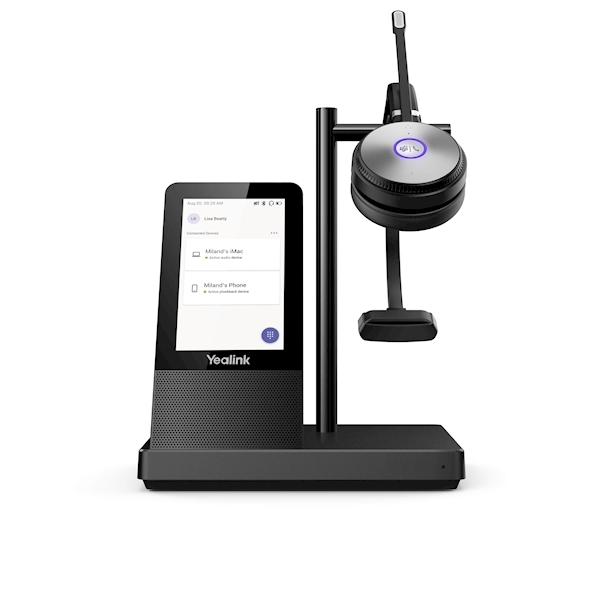
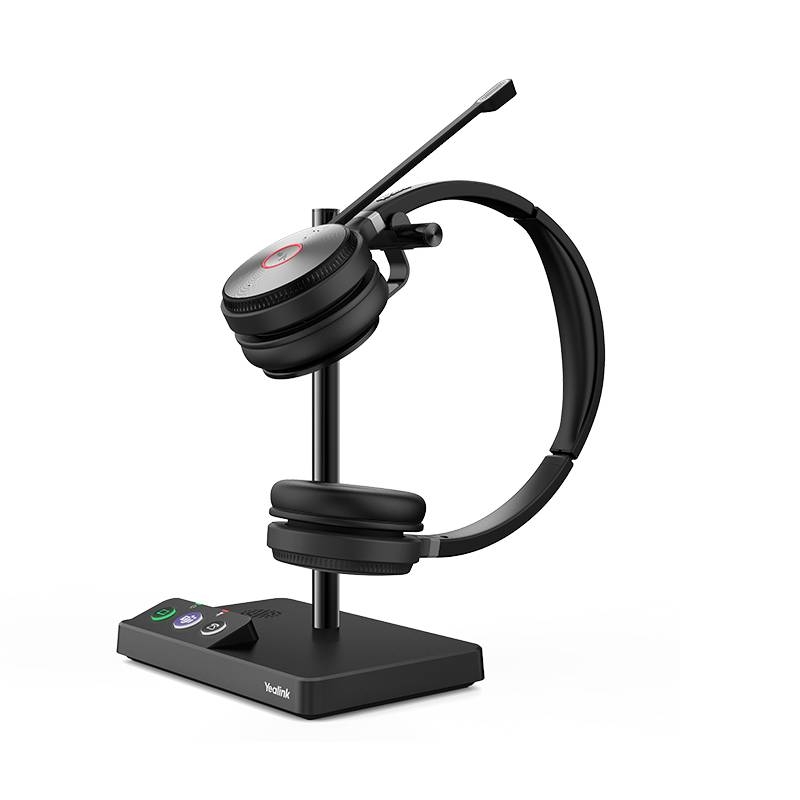
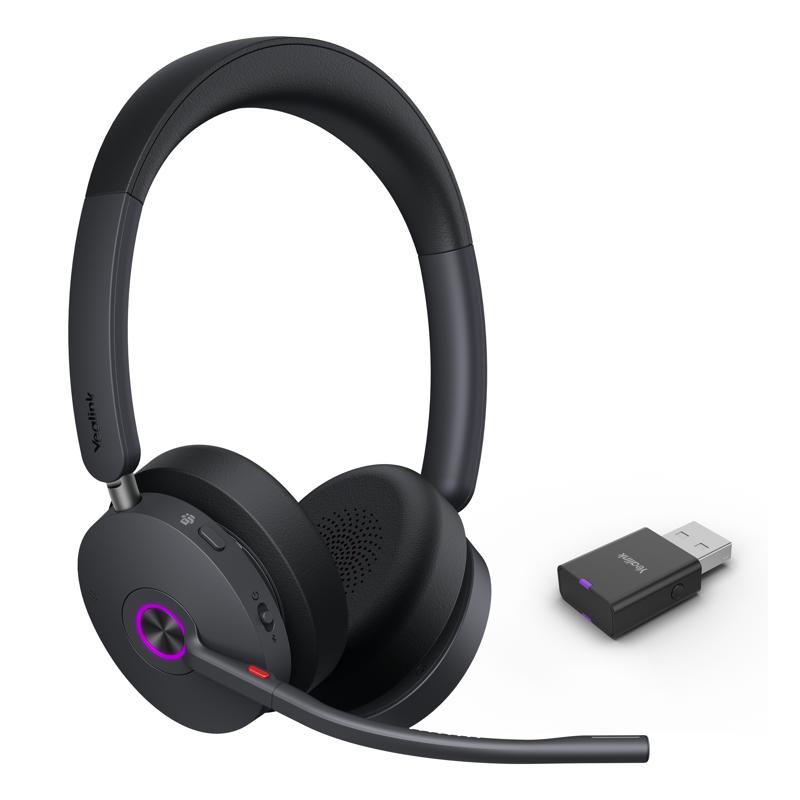
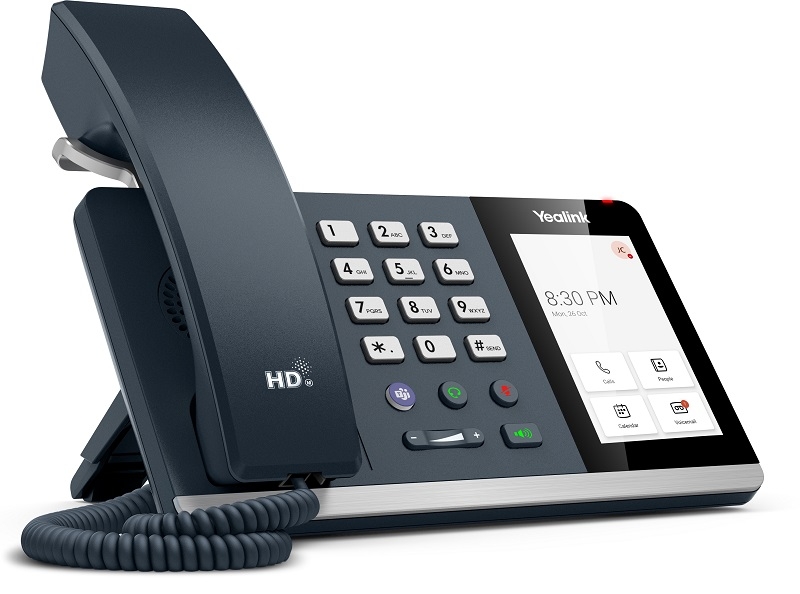
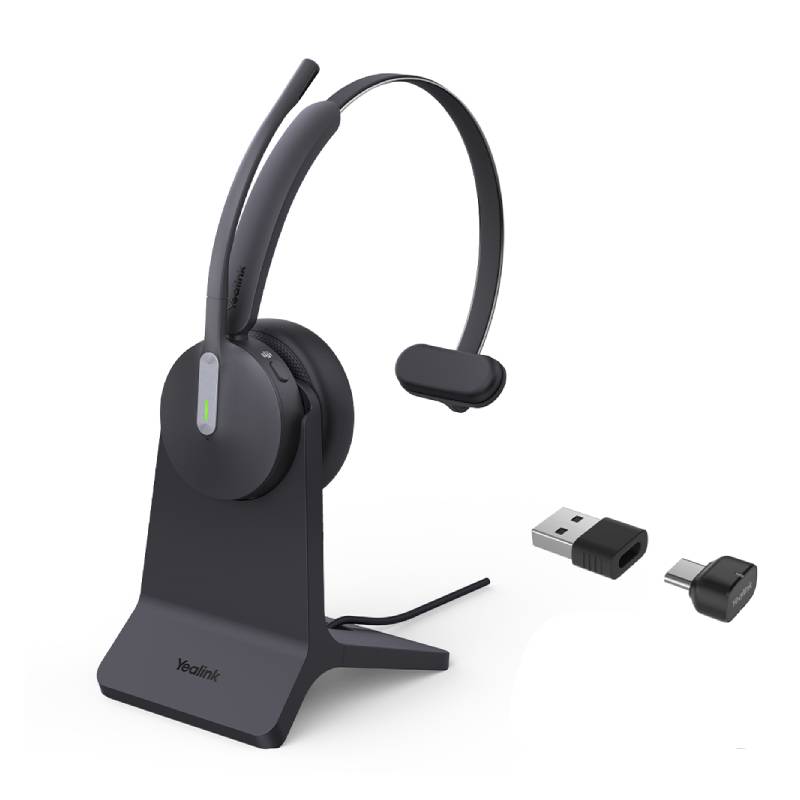
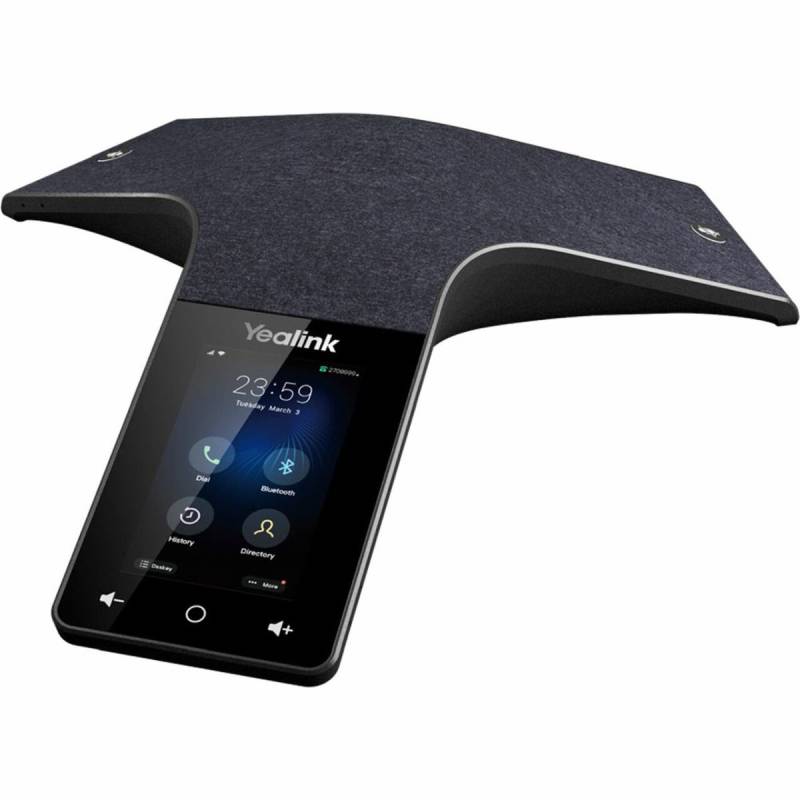
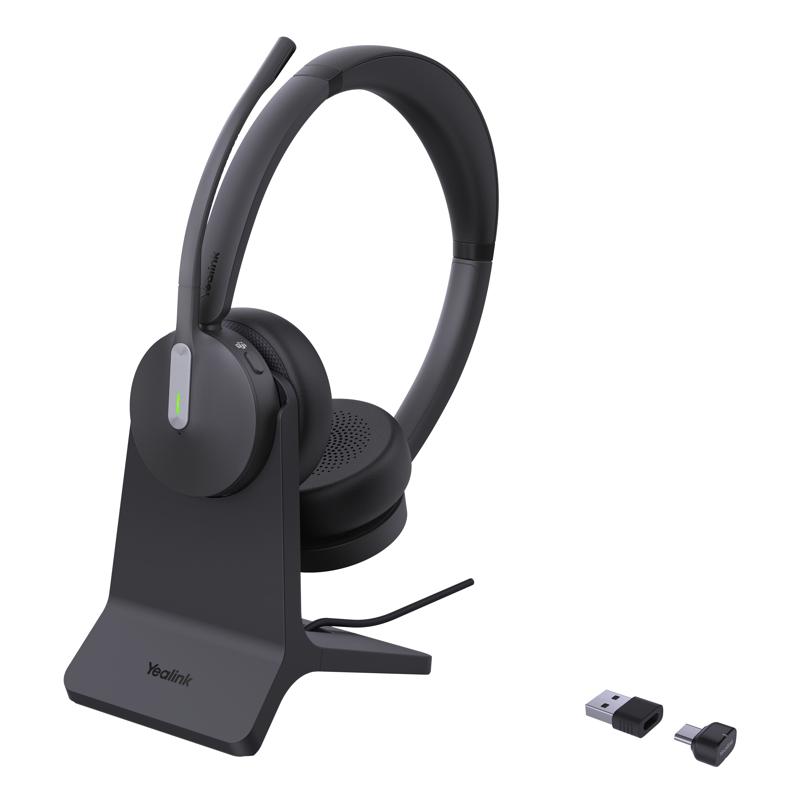
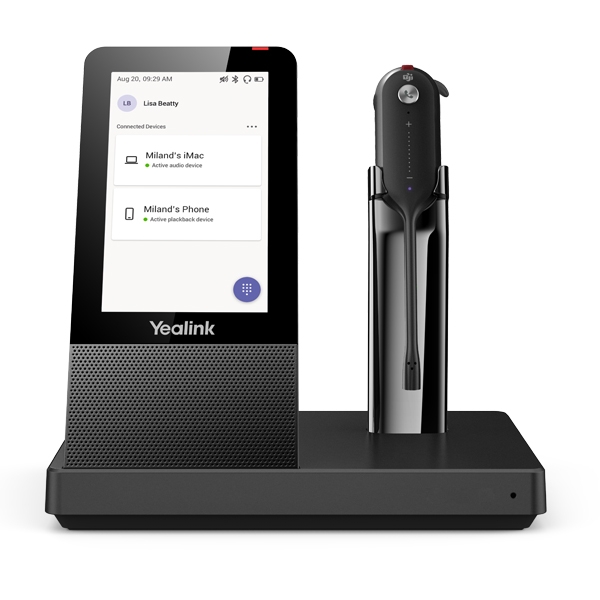
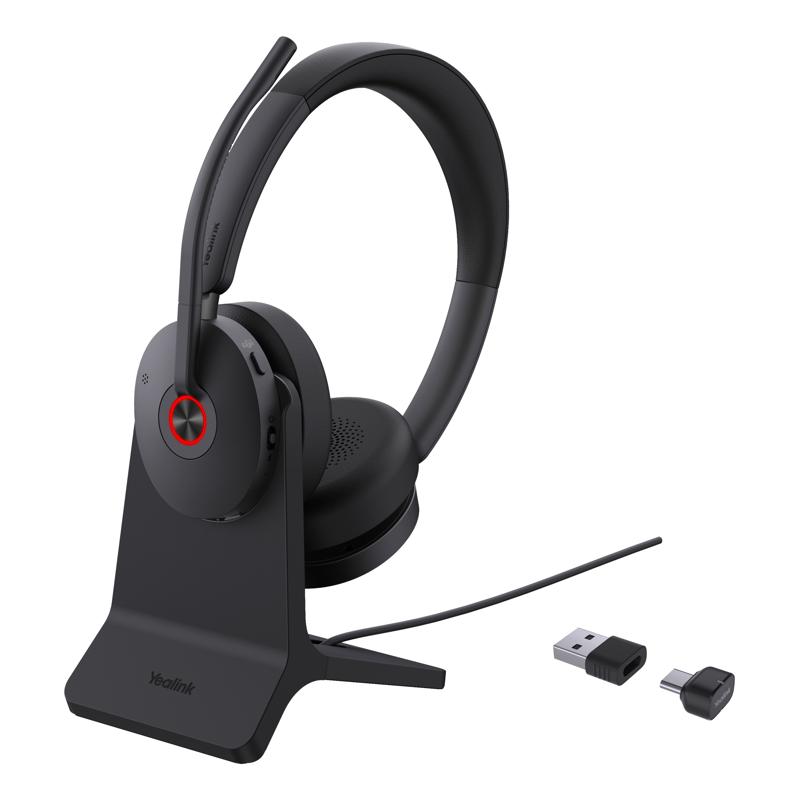
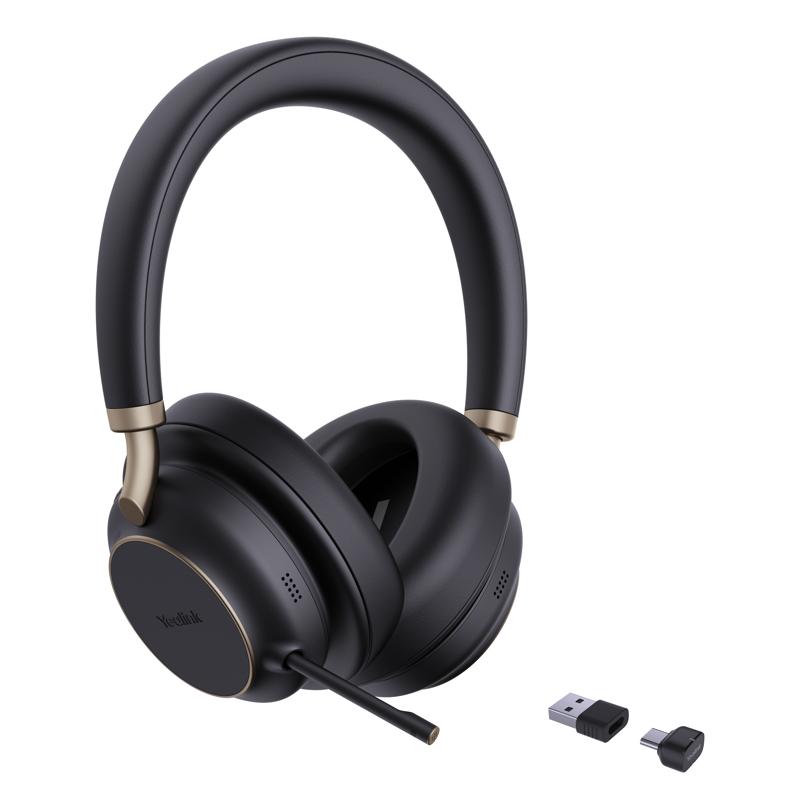
A Yealink Teams phone is a professional-grade communication device designed to deliver a seamless Microsoft Teams experience directly from your desktop. With integrated Teams features, touchscreen interfaces, and HD audio quality, these phones offer convenience, clarity, and consistency in hybrid or office settings. In this content, we’ll explore the main advantages of Yealink Teams phones, give you practical advice on how to use them effectively, and answer frequently asked questions to help you make an informed purchase decision.
Native Microsoft Teams integration: Yealink Teams phones come preloaded with the Microsoft Teams interface, offering a consistent user experience across all Teams-enabled devices. You can access calls, calendar events, voicemails, and contacts with a single touch, improving efficiency in daily workflows.
HD audio and speaker performance: Built with Yealink’s Optima HD voice technology and advanced echo cancellation, these phones deliver crystal-clear conversations that reduce miscommunication and fatigue—perfect for long meetings and high-volume environments.
Touchscreen functionality: Most models, like the Yealink MP56 or MP58, feature colour touchscreens that enable intuitive navigation, quick access to features, and smooth call handling—making them suitable even for non-technical users.
Device flexibility: Yealink offers both desk phones and conference phones that support Teams, giving organisations the freedom to equip personal workspaces, huddle rooms, or large meeting areas with the same reliable solution.
Plug-and-play setup: These phones are easy to deploy, supporting Power over Ethernet (PoE), auto-provisioning, and cloud-based management tools like Yealink’s Device Management Platform. That reduces the need for IT intervention and speeds up installation.
Secure and scalable: Yealink Teams phones support enterprise-grade security protocols and firmware updates, making them suitable for businesses of all sizes looking to scale Microsoft Teams communications across departments securely.
To get the best out of your Yealink Teams phone, start by linking it to your Microsoft Teams account during setup. Most models offer a guided login interface where you can authenticate with your Teams credentials or via QR code. Ensure the device is connected via Ethernet for optimal call stability. Once configured, customise your quick-access settings like speed dial, do-not-disturb, and voicemail management to match your communication style.
For a better user experience, consider using a Yealink-compatible headset, especially in open-plan offices. If you’re managing multiple phones across a network, use Yealink's Device Management Cloud Service to monitor performance and push updates. Don’t forget to explore advanced features such as call forwarding, call history review, and calendar integration, which can save time during back-to-back meetings or remote collaboration sessions. Regularly check for firmware updates to ensure the phone runs smoothly with the latest Microsoft Teams enhancements.
Can I use a Yealink Teams phone without a computer?
Yes. Yealink Teams phones are standalone devices that connect directly to the internet and run Microsoft Teams natively. No additional computer is needed to make or receive calls, access your calendar, or join meetings.
Is it difficult to set up a Yealink Teams phone?
Not at all. Most Yealink phones support plug-and-play installation. Simply connect to a power source (or PoE), link to your network, and follow the on-screen setup to sign in with your Microsoft Teams account.
What’s the difference between Yealink desk phones and conference phones for Teams?
Desk phones like the MP54 or MP58 are designed for individual users or small desks, while conference phones like the CP960 offer extended microphone pickup and speaker output for group meetings in larger rooms.
Do these phones support video calls?
Some advanced Yealink Teams phones include a USB port for external webcams or integrated camera support, such as the MP58 with Camera, enabling Teams video calls directly from the device.
Are Yealink Teams phones secure?
Yes. They support TLS and SRTP encryption, secure provisioning, and ongoing firmware updates, making them compliant with enterprise-grade security standards.
A Yealink Teams phone is the perfect solution for enhancing communication and simplifying Teams-based collaboration in any professional setting. Browse our range today and find the model that best suits your workspace needs.