Professional advice available Monday to Friday, 8.30am-5.30pm
Mon. to Fri. 8:30 a.m. – 6:30 p.m.
0333 123 3050
Call us!
Upgrade your meeting experience with Logitech Teams Room systems—designed to make Microsoft Teams collaboration effortless, efficient, and engaging.

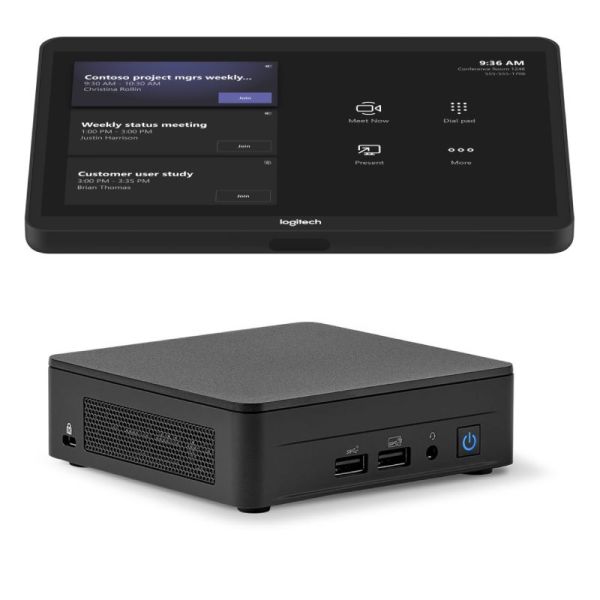
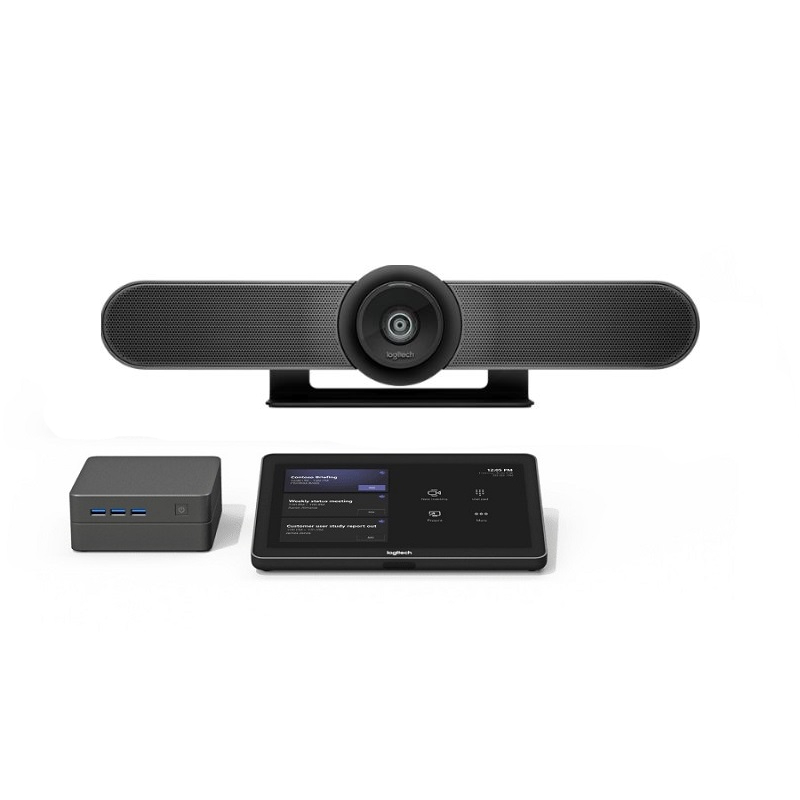
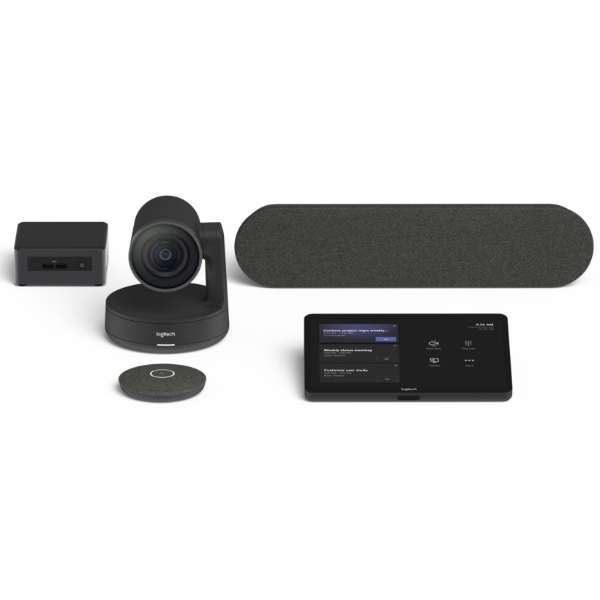
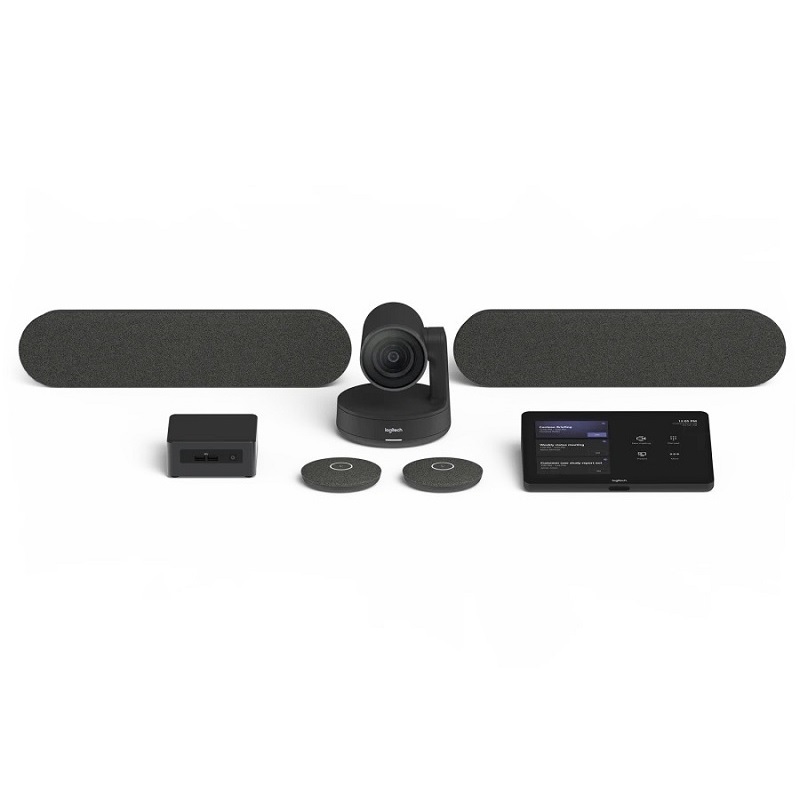
LOGITECH TAP RECOMMENDATIONS FOR TEAMS
LOGITECH TAP RECOMMENDATIONS FOR TEAMS
LOGITECH TAP RECOMMENDATIONS FOR TEAMS

LOGITECH TAP RECOMMENDATIONS FOR TEAMS
LOGITECH TAP RECOMMENDATIONS FOR TEAMS
LOGITECH TAP RECOMMENDATIONS FOR TEAMS
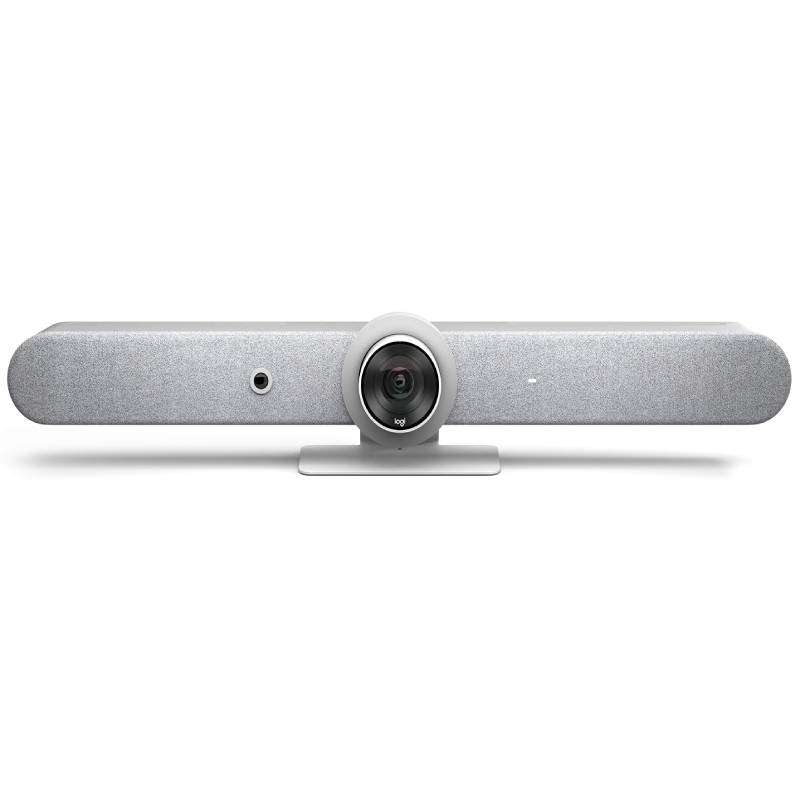
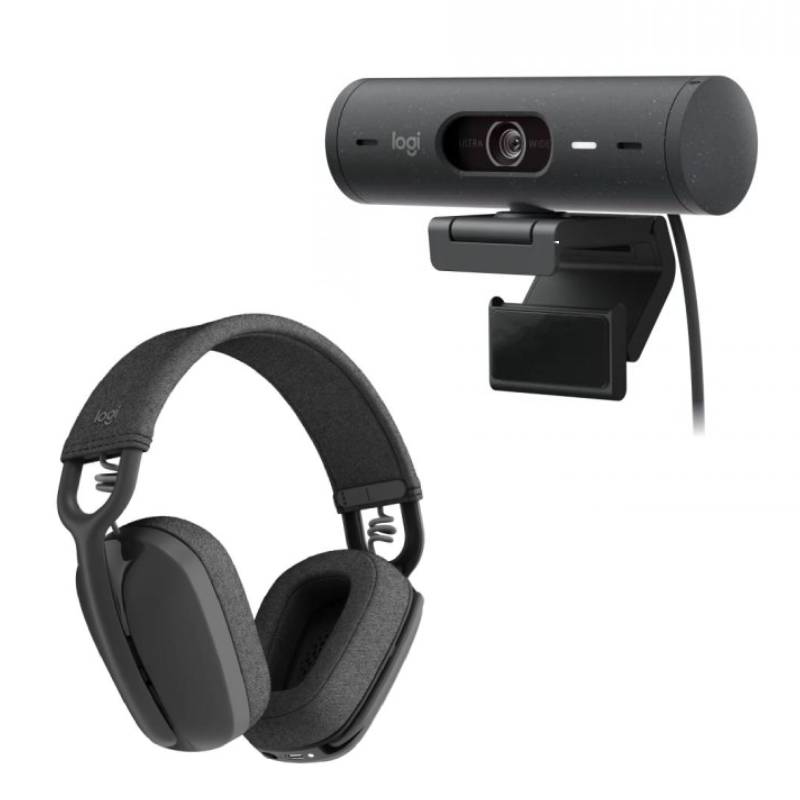
Logitech Teams Room solutions offer an all-in-one answer for transforming meeting spaces into efficient, Microsoft Teams-certified environments. Whether you're equipping a small huddle room or a large boardroom, these systems provide reliable performance, premium audio-visual quality, and effortless integration with Teams. In this guide, we’ll explore the key benefits of using a Logitech Teams Room setup, share usage tips for optimal performance, answer frequently asked questions, and help you choose the right configuration for your business.
Each Logitech Teams Room solution is officially certified by Microsoft, ensuring full compatibility and seamless functionality within the Teams environment. This eliminates setup headaches and ensures a consistent user experience across all your meeting spaces.
From compact setups for huddle rooms to advanced systems for large conference halls, Logitech offers pre-configured Teams Room kits tailored to different space requirements. This modular approach allows you to scale up or down depending on your needs.
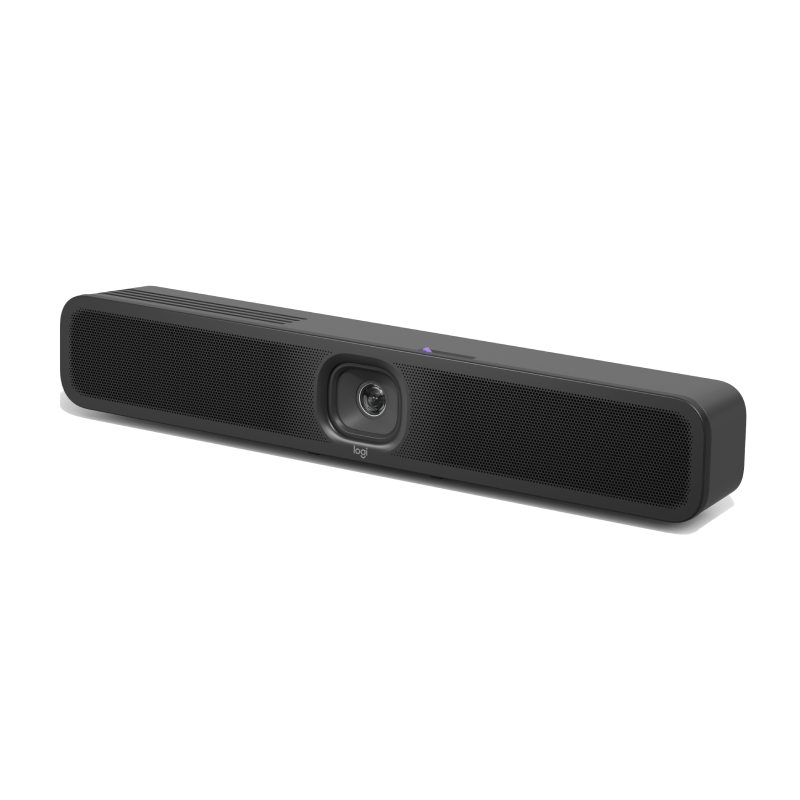
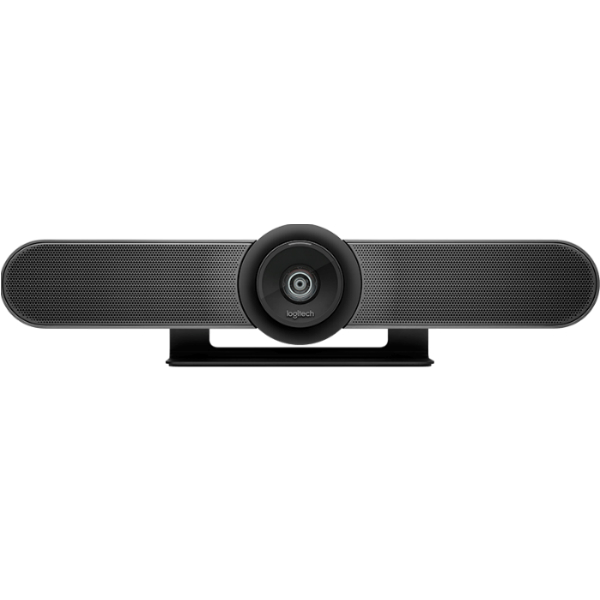
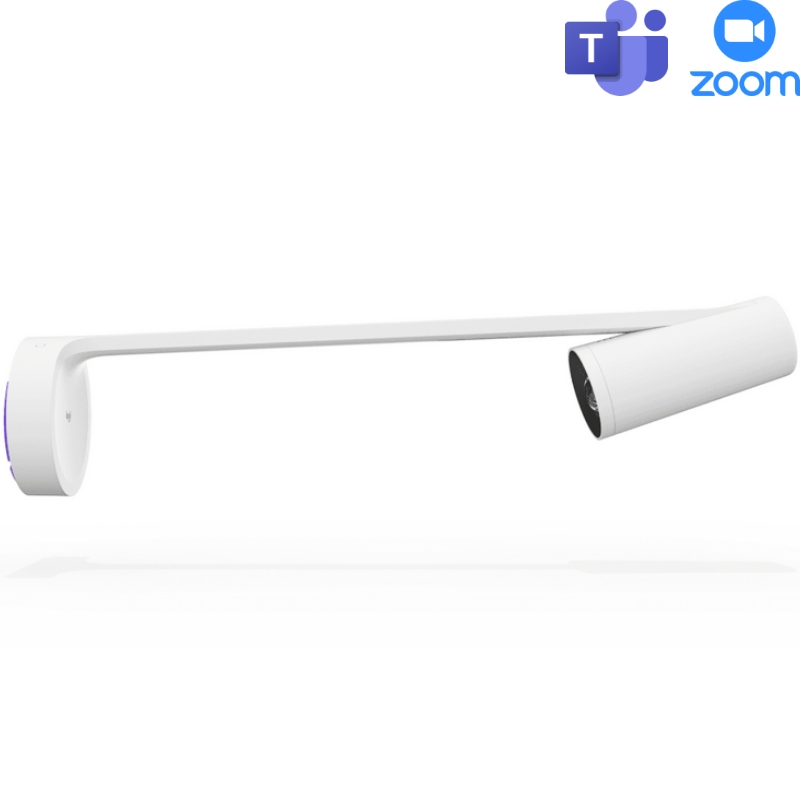
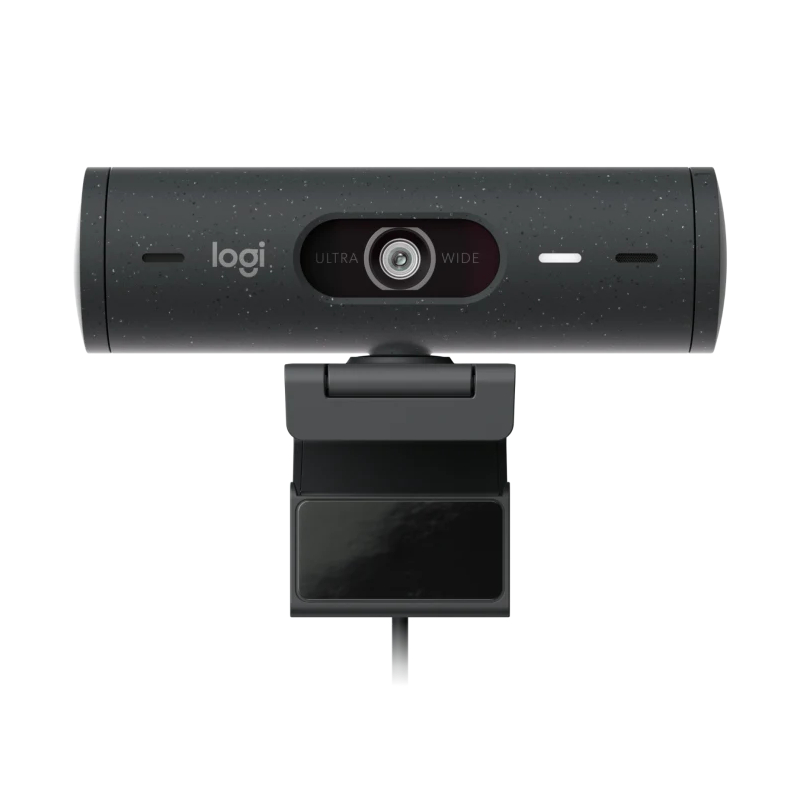
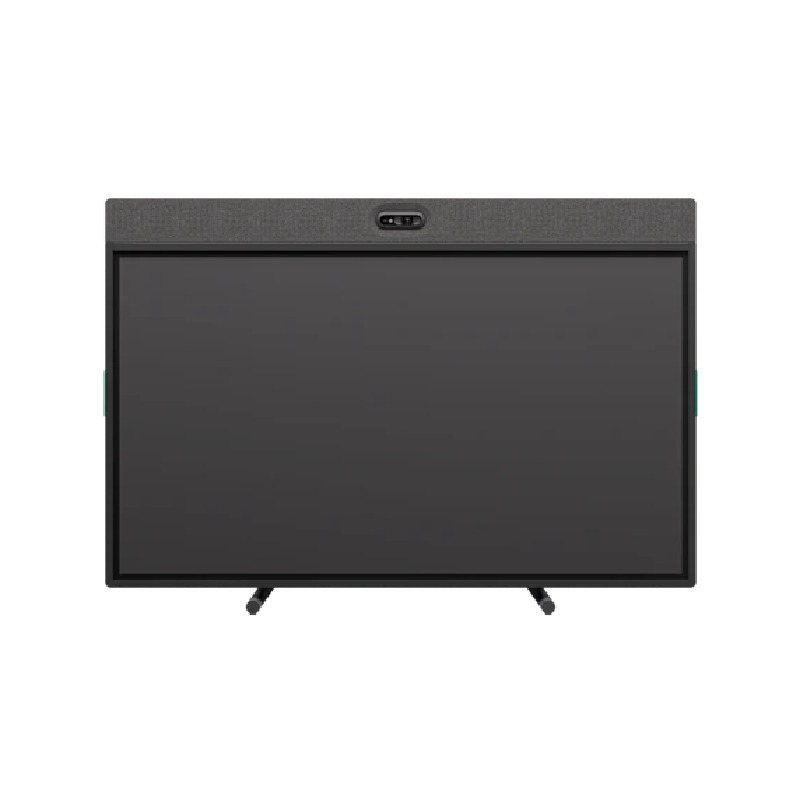
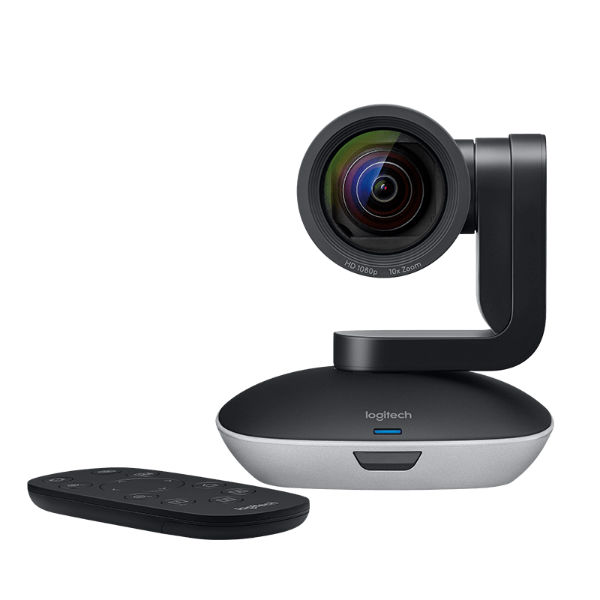
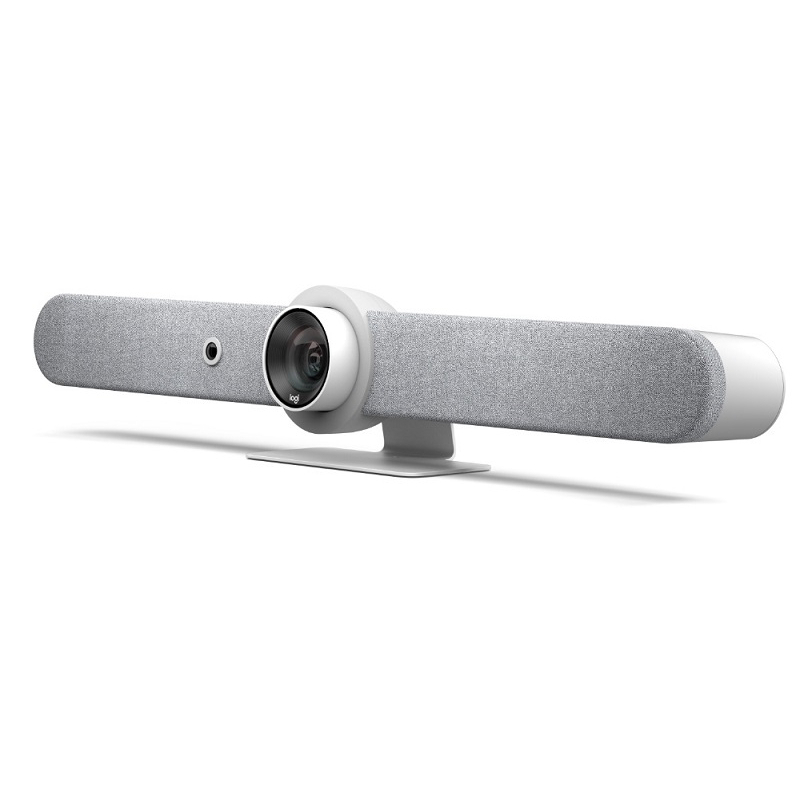
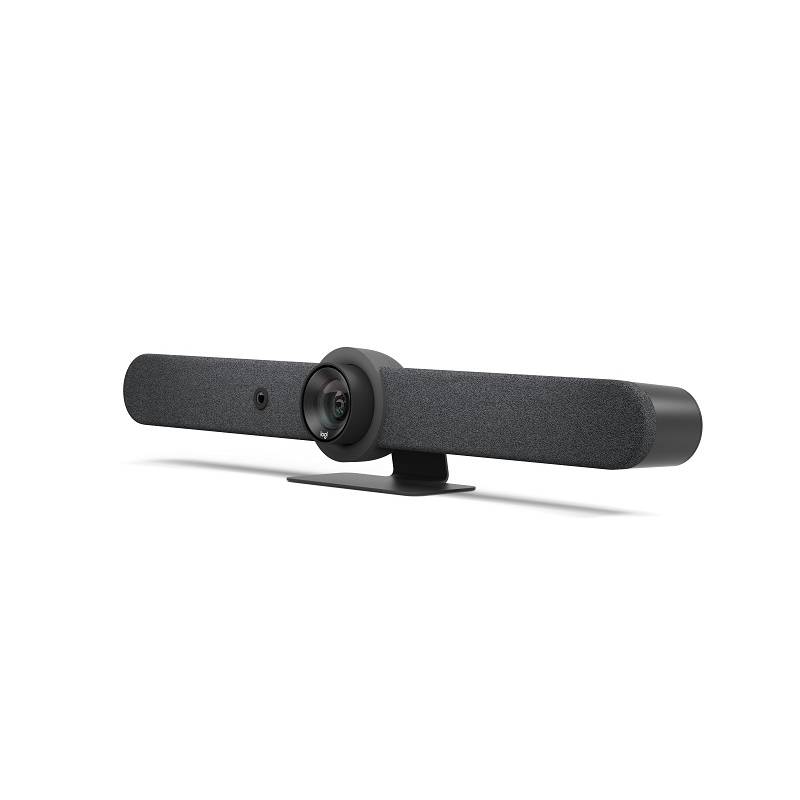
With Logitech’s renowned video bars and PTZ cameras, you get high-definition visuals, wide-angle lenses, and AI-powered framing. Paired with studio-quality microphones and speakers, your team will experience crystal-clear communication every time.
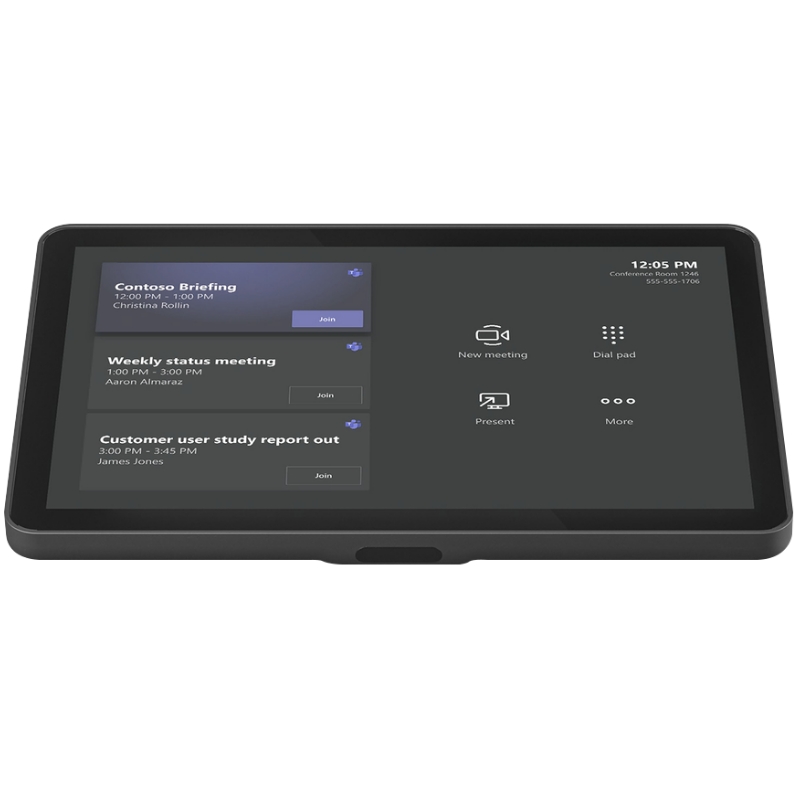
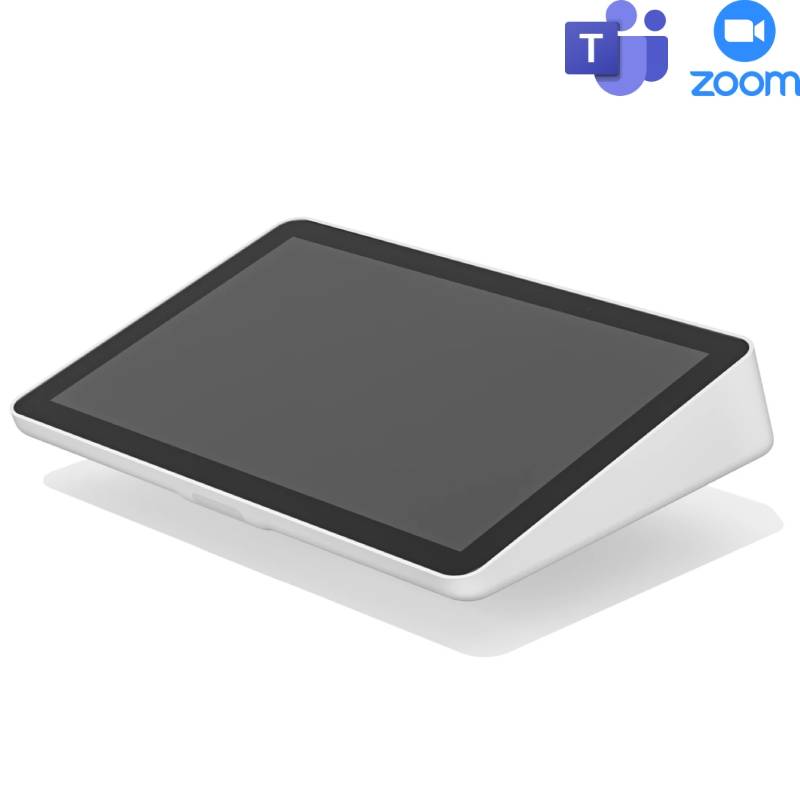
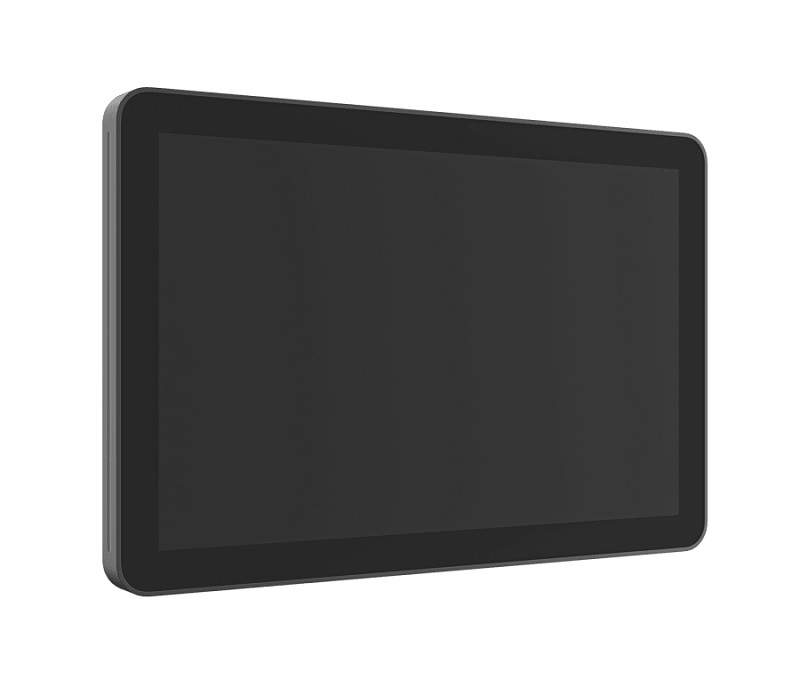
The Logitech Tap touch controller provides a simple and user-friendly way to start, schedule, or join a Teams meeting with a single tap. It’s designed for minimal training, making meetings more accessible to everyone in the workplace.
With Logitech Sync, IT administrators can monitor and manage devices remotely, deploy firmware updates, and troubleshoot issues without stepping into each meeting room. This reduces downtime and improves operational efficiency.
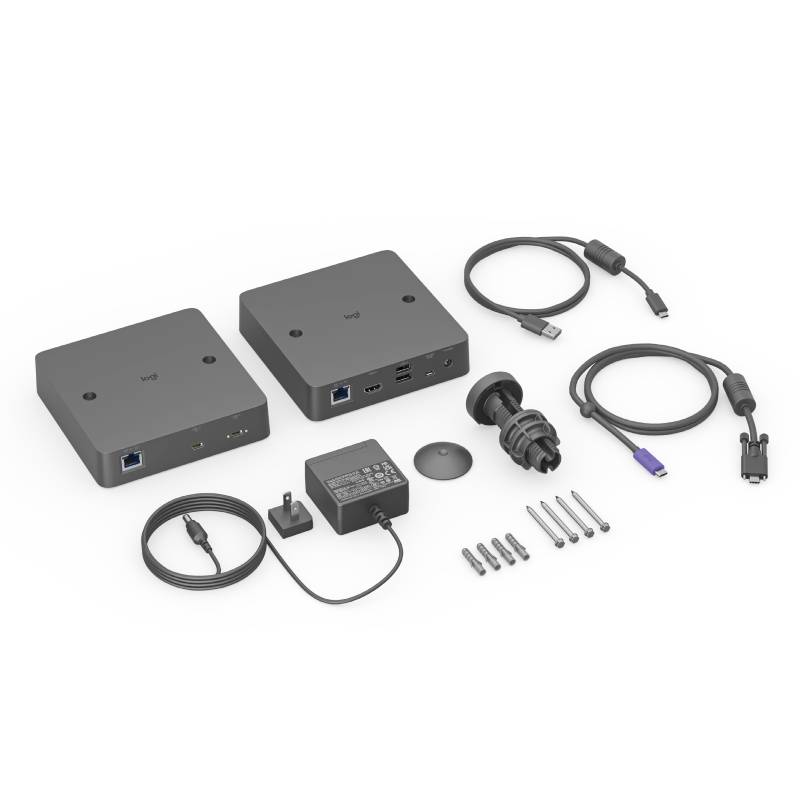
Logitech Teams Room kits are built with modern office design in mind. Cables are neatly managed, and components are compact and discreet, contributing to a clean and professional workspace environment.
To get the most out of your Logitech Teams Room setup, start by assessing the acoustics, lighting, and layout of your meeting space. Position cameras at eye level for natural engagement and use Logitech Rally Mic Pods or extension microphones in larger rooms to ensure clear audio for all participants. Make sure the touch controller is placed within easy reach and visible to everyone at the table for smooth operation.
Keep all software and firmware updated using Logitech Sync to maintain security and performance. Encourage users to schedule Teams meetings in advance via Outlook or Teams itself to enable automatic calendar integration. If your room is multi-purpose, use presets to quickly switch between video conferencing and presentation modes. Finally, train your team on basic functions like screen sharing, camera control, and muting to avoid delays and ensure efficient meetings.
What is a Logitech Teams Room solution?
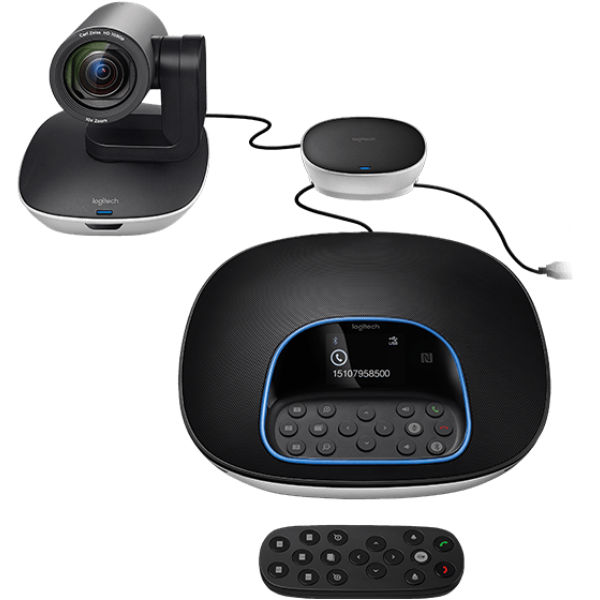
It’s a complete video conferencing system built around Microsoft Teams and Logitech hardware. These solutions combine a Logitech camera, speakers, microphones, a mini-PC, and the Logitech Tap controller to deliver a plug-and-play Teams meeting experience.
Can I use Logitech Teams Room products with Zoom or Google Meet?
While Logitech does offer cross-platform compatibility with some hardware, Teams Room kits are specifically optimised for Microsoft Teams. For multi-platform use, consider Logitech’s Zoom Room or BYOD-compatible solutions instead.
What room sizes are supported?
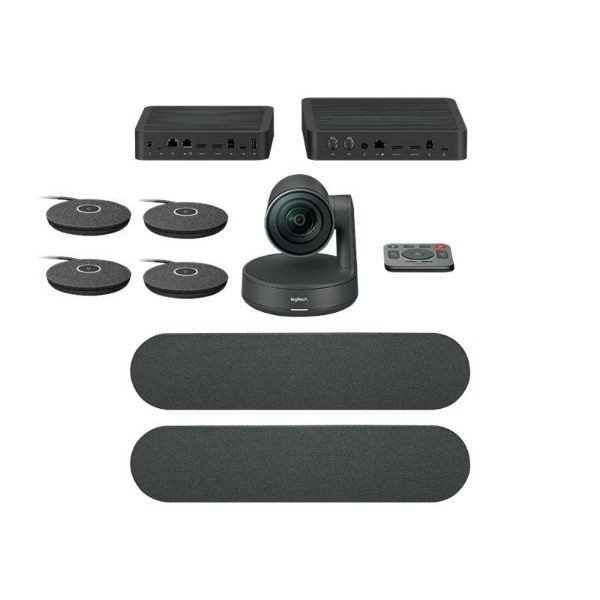
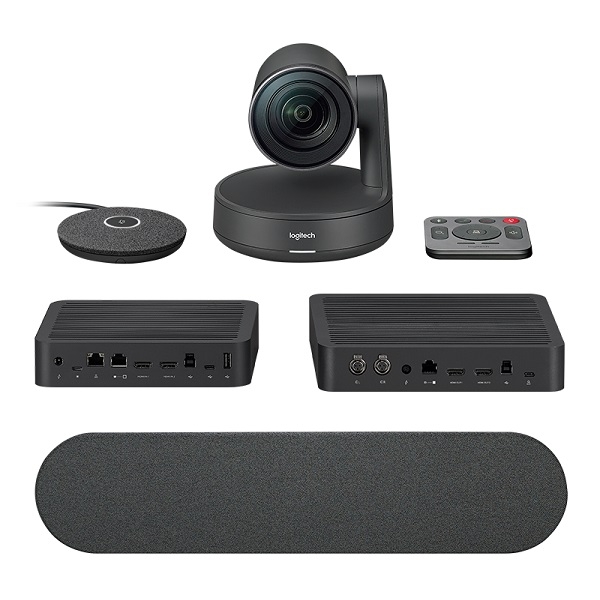
Logitech Teams Room kits are available for small, medium, and large rooms. The Rally Bar Mini is ideal for small spaces, while the Rally Plus system suits large conference rooms. Additional accessories allow for easy customisation to match your exact layout.
Is it difficult to install a Teams Room system?
Not at all. Logitech offers easy-to-follow installation guides and colour-coded cabling. Most kits are designed for quick plug-and-play setup, and the Logitech Tap controller walks users through the Teams interface in just a few taps.
Do I need a Teams Room license?
Yes. To use a Logitech Teams Room system, you’ll need a Microsoft Teams Rooms license. This enables the software features and integrates the room system with your Teams environment.
Logitech Teams Room systems simplify and elevate your meeting experience, no matter the size of your workspace.
Explore our complete range now to find the ideal setup for your business communication needs.